What this unlocks
Monitor organic traffic and keyword rankings. Once connected, Google Search Console data shows up in these places in your dashboard:
Organic search performance
Clicks, impressions and positions for your pages, pulled for each report window.
Keyword movers
The Search Console keyword movers section in your Reports.
Before you begin
Have these ready. The connection itself only takes a few minutes.
- A Salient dashboard login with access to the brand you are connecting.
- A Google account that has access to your site in Google Search Console (Owner, Full or Restricted user).
- The property should be verified in Search Console. Unverified properties show in the list but will not return data.
Step by step
-
Open Integrations in the dashboard
Sign in at app.salientnow.io. If your login covers more than one brand, pick the brand you want to connect on the
Pick the brand you want to work on.
screen. Then click Integrations in the left sidebar.Cards are grouped under Analytics and CRM. You can also type in
Search for an integration...
to find the Search Console card.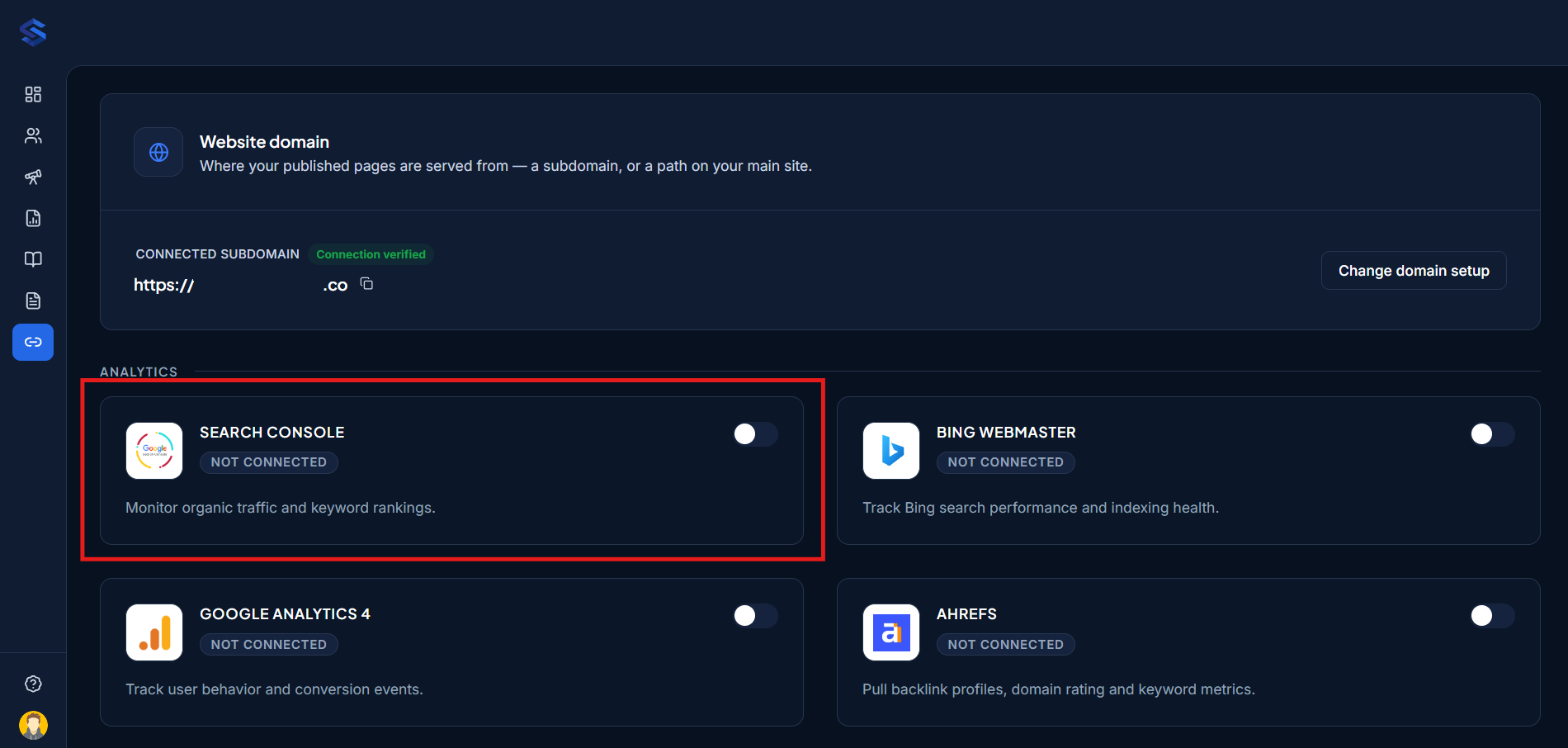
The Integrations page, with the Search Console card visible and showing “Not Connected”. -
Turn on the Search Console toggle
Click the toggle on the Search Console card. A
Processing...
screen appears while Salient prepares a secure link to Google.
The Search Console card with the toggle being switched on. -
Sign in with Google and allow access
You're sent to Google. Choose the Google account that has access to your Search Console property, review the permissions and click Continue / Allow.
Use the same Google account you use to open Search Console. If you have several, check which one owns the property first at search.google.com/search-console.

Google’s account chooser and permission screen for Salient. -
Wait while Salient loads your properties
Google sends you back to the Integrations page. You'll briefly see messages such as
Retrieving search properties...
andParsing verified domains...
, then the toastGoogle Search Console Verified!
. -
Pick your site
A window titled
Select Search Console Site
lists every property the Google account can see, each with a Verified or Unverified badge. UseSearch accounts...
to filter, then click the property for the domain Salient publishes on.When it's saved you'll see
Google Search Console Connected Successfully!
Pick the right property type. Search Console treats
http://,https://,https://www.andsc-domain:as separate properties. A Domain property (sc-domain:yourdomain.com) covers all of them and is the best choice if you have one.
The “Select Search Console Site” picker showing properties with Verified / Unverified badges. -
Check that the card shows Active
Back on the Integrations page, the Search Console card now shows a green Active ✓ badge, the toggle is on, and the card reads Connected to: followed by the account you picked. Data starts appearing in your dashboard after the next sync.

The Search Console card in its connected state: “Active ✓”, toggle on, and “Connected to:” showing the account.
Change or disconnect
Change the connected account
Click the gear icon next to the Search Console title. This reopens the site picker so you can choose a different Search Console property.
Disconnect
Turn the toggle off. A dialog asks Disconnect Google Search Console
and explains: Are you sure you want to disconnect Google Search Console? This will stop tracking and syncing data from this integration.
Click Disconnect to confirm. You'll see Account Disconnected
.
Disconnecting removes our access immediately. You can also revoke access from the Google Search Console side at any time.
Troubleshooting
These are the messages you might see in the dashboard, and what to do about each one.
I see “No Search Console sites found.”
The Google account you signed in with has no Search Console properties. Turn the toggle off, then connect again and choose the Google account that owns your site. Or ask the property owner to add that account as a user in Search Console under Settings → Users and permissions.
I see “Failed to load Search Console sites.”
Google didn't return the property list. Click the refresh icon (Refresh integration status
) at the top of the Integrations page, then click the gear icon on the card to try again.
My site shows “Unverified”
The property exists but hasn't been verified in Search Console. Verify it in Search Console first (DNS record is the most reliable method), then pick it again in Salient.
Data looks a few days behind
That's expected. Google Search Console data typically lags by 2–3 days, so the most recent days fill in later.
I see “Google Search Console Connection Failed!”
The property couldn't be saved. Try again from the gear icon. If it keeps failing, email us with the property name you selected.